
.upload_dir in the folder, which you can also write or edit yourself.
Create a job from the UI
1
Find the folder
In Directories Under Scan Root, browse to the folder you want.
2
Open the Job Editor
Click Edit on the folder’s row to open the Job Editor. Browse files on the row lets you look inside first.
3
Set options and save
Fill in the fields below and click Save Job. Scout writes the folder’s
.upload_dir for you.
Stop Backing Up removes the marker. Existing snapshots on Station are kept.
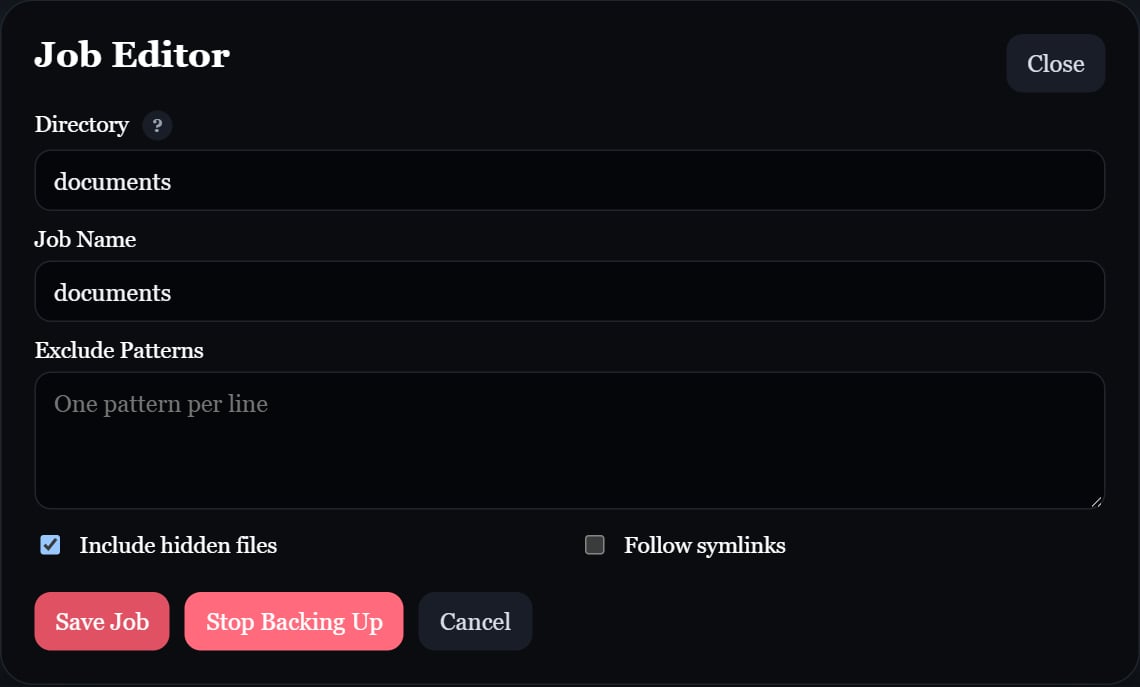
The Job Editor writes the folder's .upload_dir settings.
Edit the .upload_dir file
Saving in the Job Editor writes the folder’s.upload_dir. Writing that file yourself does the same thing as using the editor. Use it for scripts, configuration management, or folders you set up before Scout runs.
To create a job, create .upload_dir in the folder. An empty file uses the folder name as the job name:
.upload_dir
job_name has disallowed characters, Scout skips the job and shows the error on it.
Scout looks for new .upload_dir files every 30 seconds, so one you create by hand can take that long to appear under Selected Jobs. Edits to an existing file, deleted files, and jobs saved or removed in the Job Editor show up right away.
Once Scout finds a marker, it doesn’t look for more inside that folder. Nested folders are covered by the parent job.
📌 = folder with a .upload_dir marker.
Archives contain regular files. Empty directories and special files are not archived, and the job root’s .upload_dir is excluded. A job with no included files is skipped. With Follow symlinks enabled, Scout stores the target’s files rather than preserving the links themselves.
Exclusions
Patterns are matched against paths relative to the job folder, using/ as the separator.
Exclude from the file browser
On a job, click Files & exclusions to browse its files with their sizes.- Exclude on a file, or Exclude folder on a folder, adds a literal
/…pattern to the job’s.upload_dirimmediately. - Calculate folder size totals a folder on demand. Totals are source sizes before compression, include excluded files, and skip symlinks and Scout’s own runtime data.
- To include something again, remove its pattern in the Job Editor.
Exclusions apply to the next archive. If the job already has a staged archive, click Clear staged backup so it’s rebuilt with the new exclusions.
Job actions
Cancel operation at the top of the page stops the backup cycle or forced upload in progress, including compression and upload retries. Incomplete archives are discarded, and a fully built archive stays staged for retry. Cancel before clearing a staged backup.