
Restore the latest snapshot
1
Open Restore
On the job in Selected Jobs, click Restore.
2
Leave the fingerprint empty
An empty Snapshot fingerprint means the latest snapshot.
3
Preview
Click Preview Restore. Edge shows how many files the snapshot has, and how many would replace existing files or be added.
4
Confirm
Click Restore These Files to write the files into the job’s folder. Search and the All, Replace, and Add filters only change the preview display; they do not select a subset to restore.
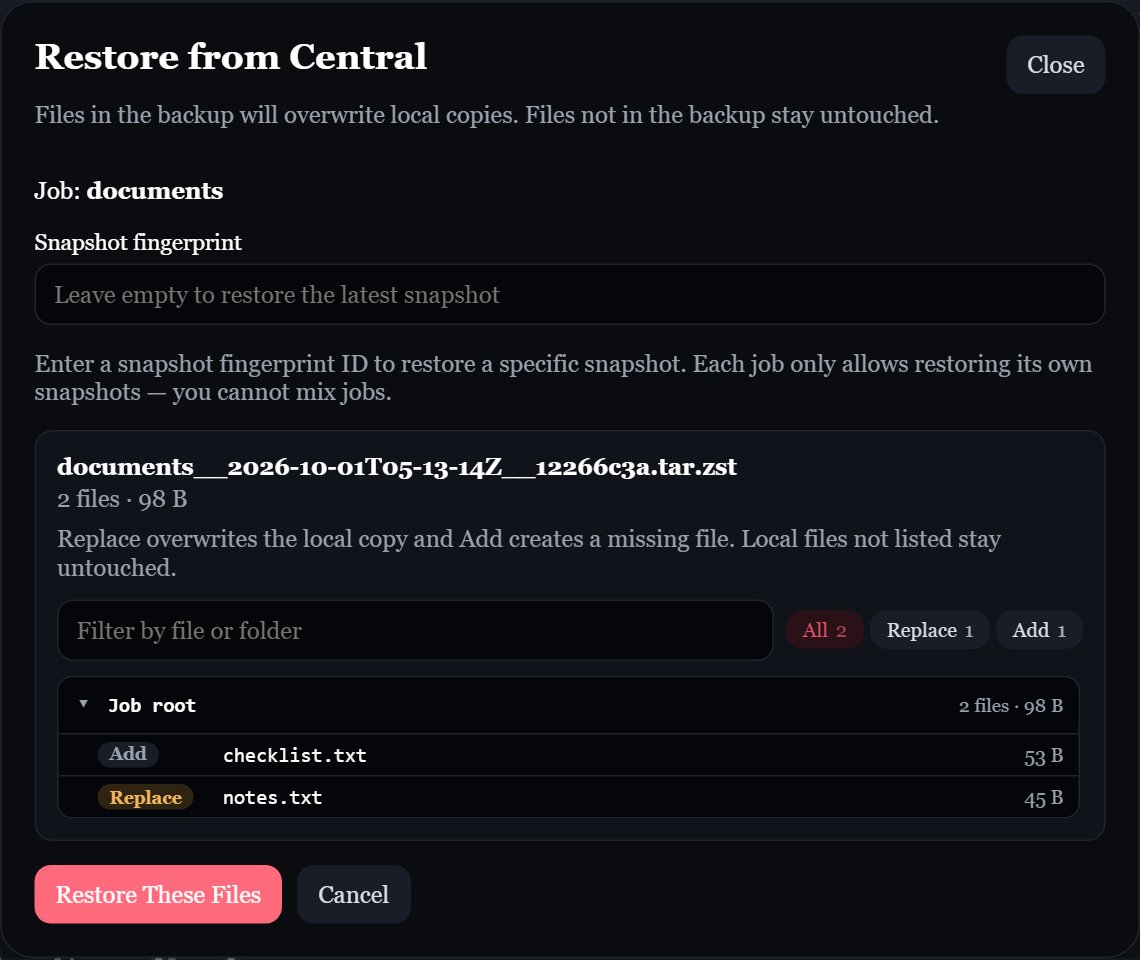
Restore preview showing one missing file to add and one local file to replace.
Restore a specific snapshot
Each snapshot’s fingerprint is part of its filename on Central, and is shown as FP next to each snapshot in Central’s UI:Requirements
- Edge must be able to reach Central, with a valid credential.
- Edge must have the same encryption key that encrypted the snapshot. If it doesn’t, the restore fails with “unable to decrypt snapshot with this Edge key”.
After you rotate the key, Edge can no longer restore snapshots made with the old key, and Central’s UI stops accepting the old key after Edge’s next upload. Download any older snapshots you need before rotating.
Rebuilding a lost machine
Edge only restores snapshots belonging to its own instance ID, which is stored inconfig/installation.id. A fresh install gets a new instance ID, so it can’t restore the old machine’s snapshots through Edge on its own.
If you have the old Edge’s whole config folder (it includes installation.id, encryption.key, and the saved settings and credential):
1
Put the config folder back
Place it next to
docker-compose.yml before starting Edge for the first time.2
Use the same Edge ID
Set
EDGE_ID to the old value in .env.3
Recreate the job and restore
Create the job with the same job name, then use Restore.
encryption.key, download the snapshots from Central’s UI with that key, and extract them by hand: