
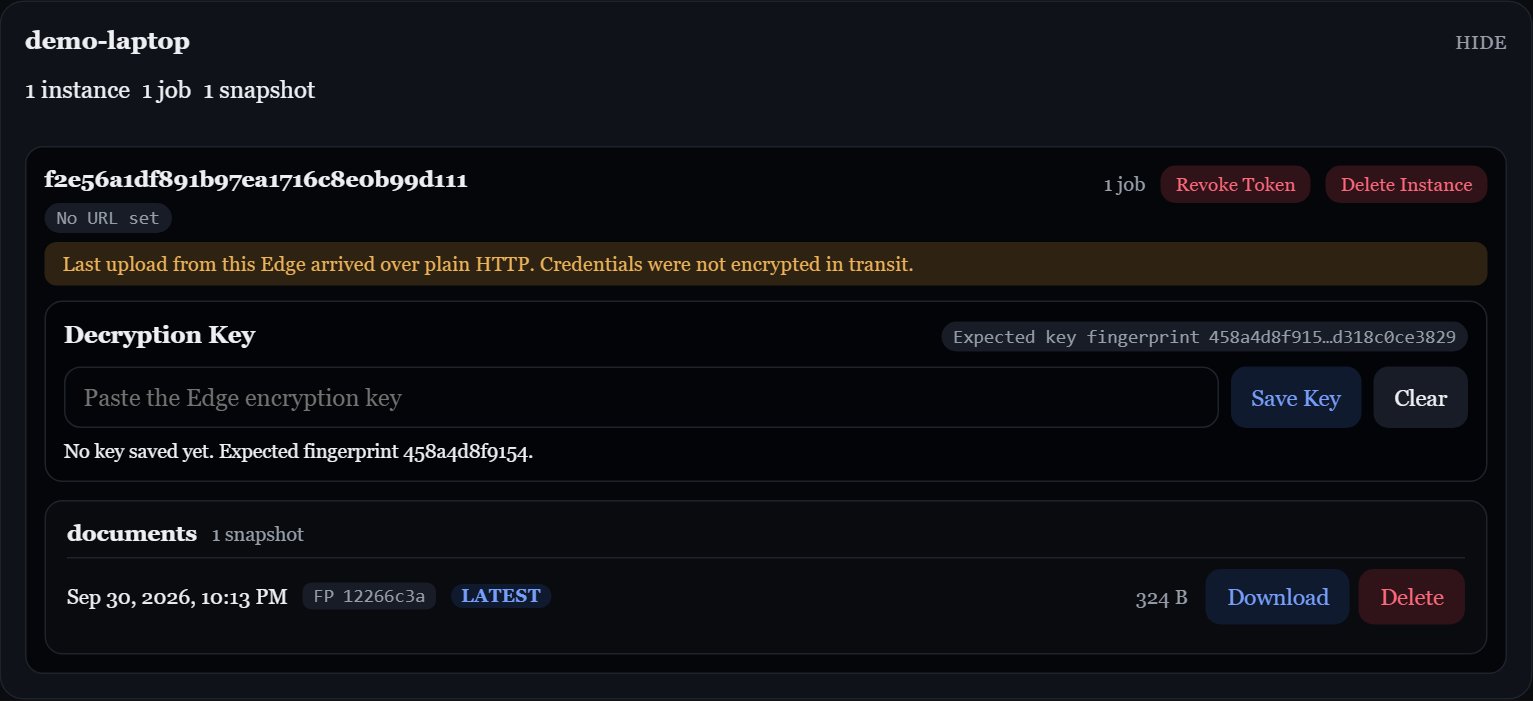
An expanded Edge instance with a stored snapshot in a local demo deployment.
How snapshots are stored
Each snapshot is one encryptedtar.zst file in Central’s backup folder:
Download a snapshot
Click Download on a snapshot. Because snapshots are encrypted by Edge, Central’s UI asks for that Edge’s encryption key the first time: Browser decryption uses Web Crypto. Open Central over HTTPS, or throughlocalhost for local use; a plain HTTP LAN address does not provide the secure browser context needed for decryption.
1
Copy the key from Edge
In Edge’s UI, find Encryption Key and click Copy. See Encryption key.
2
Paste it into Central
Paste it when Central prompts. Central checks it against the key fingerprint that Edge reported, so a wrong key is caught before decryption starts.
3
Save the file
The snapshot is decrypted in your browser as it downloads, and saved as a regular
tar.zst archive.Delete a snapshot
Click Delete on a snapshot and confirm. This permanently removes the file.Retention
After each upload, Central keeps the most recent Keep Last Snapshots (default3) for that job and Edge instance, and deletes older ones. Edge instances never prune each other’s snapshots, even if they share an EDGE_ID.
Ordering uses the stored files’ modification times. Preserve those times when copying archives back into Central’s backup folder.
Change it in Edit Central Settings. See Design decisions.
Integrity checks
Central can re-check stored snapshots with SHA-256 to catch files that have been corrupted or changed on disk. Each check covers the latest snapshot of every job, not the full history, to stay lightweight.- Run Now: start a check from the integrity bar on the snapshots page.
- Scheduled: set Snapshot Integrity Check Interval (hours) in Edit Central Settings.
0turns scheduled checks off.
Central reads the check interval when it starts. After changing it, restart Central:
docker compose restart central.