> ## Documentation Index
> Fetch the complete documentation index at: https://3to1go.docs.thesteau.com/llms.txt
> Use this file to discover all available pages before exploring further.
# Restore
> Bring a snapshot from Central back into a job's folder on Edge.
Edge can download a snapshot from Central, decrypt it with its own key, and extract it back into the job's folder.
Restore **overwrites** local files that are also in the snapshot. Files that aren't in the snapshot are left untouched. Check the preview before confirming.
## Restore the latest snapshot
On the job in **Selected Jobs**, click **Restore**.
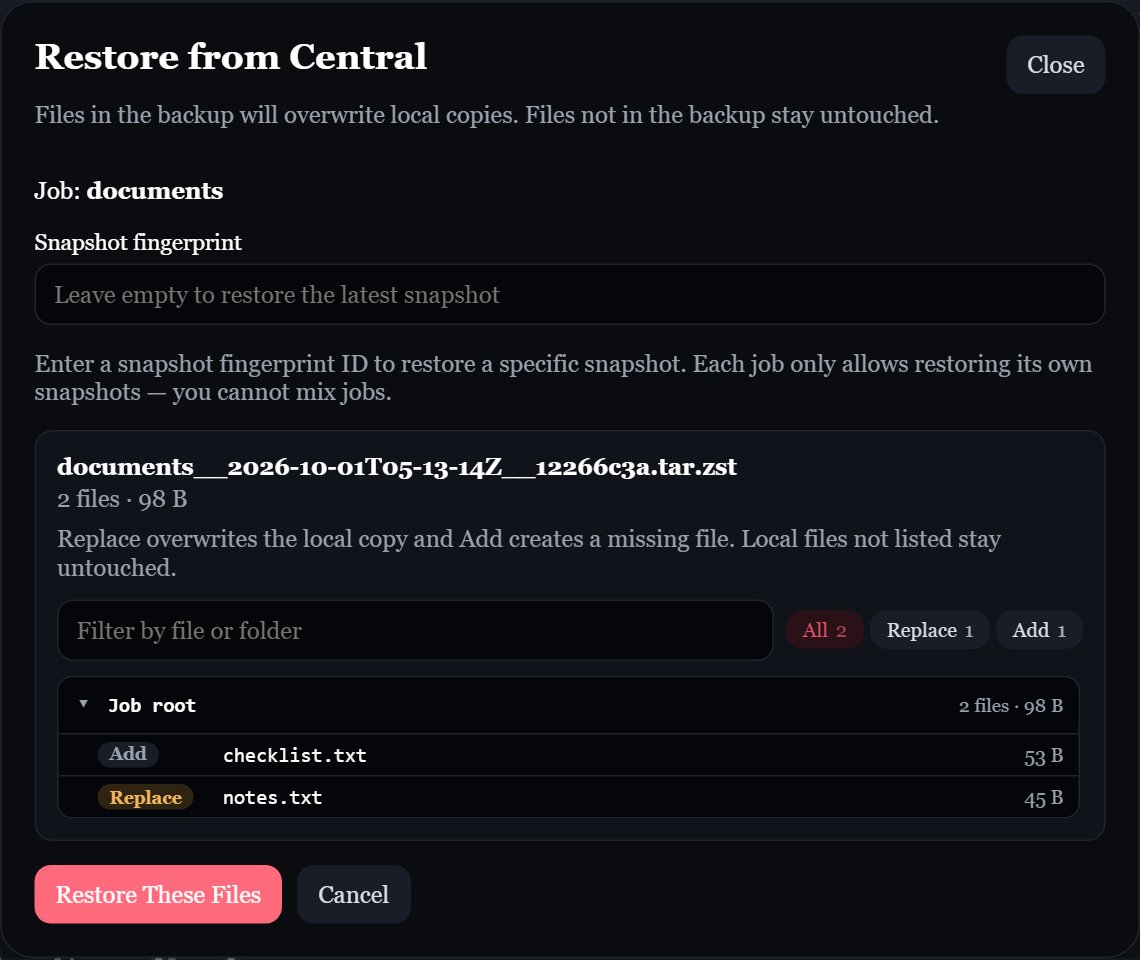
An empty **Snapshot fingerprint** means the latest snapshot.
Click **Preview Restore**. Edge shows how many files the snapshot has, and how many would replace existing files or be added.
Click **Restore These Files** to write the files into the job's folder. Search and the **All**, **Replace**, and **Add** filters only change the preview display; they do not select a subset to restore.
 ## Restore a specific snapshot
Each snapshot's fingerprint is part of its filename on Central, and is shown as **FP** next to each snapshot in Central's UI:
```text theme={null}
photos__2026-09-30T02-00-00Z__abcdef12.tar.zst
^^^^^^^^ fingerprint
```
Enter it in **Snapshot fingerprint**, then preview and confirm as above.
Use the eight lowercase hexadecimal characters shown in **FP** (a full 64-character fingerprint is also accepted). Central matches the first eight characters and returns the matching file with the newest modification time. Forced backups can share a fingerprint, so it is not a unique snapshot ID. To retrieve an exact older file among such matches, use that file's **Download** button in Central.
A job can only restore its **own** snapshots. You can't restore one job's snapshot into another job's folder.
## Requirements
* Edge must be able to reach Central, with a valid credential.
* Edge must have the **same encryption key** that encrypted the snapshot. If it doesn't, the restore fails with "unable to decrypt snapshot with this Edge key".
After you [rotate the key](/edge/encryption-key#rotate-the-key), Edge can no longer restore snapshots made with the old key, and Central's UI stops accepting the old key after Edge's next upload. Download any older snapshots you need **before** rotating.
## Rebuilding a lost machine
Edge only restores snapshots belonging to its own **instance ID**, which is stored in `config/installation.id`. A fresh install gets a new instance ID, so it can't restore the old machine's snapshots through Edge on its own.
**If you have the old Edge's whole `config` folder** (it includes `installation.id`, `encryption.key`, and the saved settings and credential):
Place it next to `docker-compose.yml` before starting Edge for the first time.
Set `EDGE_ID` to the old value in `.env`.
Create the job with the **same job name**, then use **Restore**.
**If you only have `encryption.key`**, download the snapshots from [Central's UI](/central/snapshots#download-a-snapshot) with that key, and extract them by hand:
```sh theme={null}
tar --zstd -xf photos__2026-09-30T02-00-00Z__abcdef12.tar.zst -C /path/to/restore
```
This is why backing up Edge's whole `config` folder, not just the key, makes recovery much easier.
## Restore a specific snapshot
Each snapshot's fingerprint is part of its filename on Central, and is shown as **FP** next to each snapshot in Central's UI:
```text theme={null}
photos__2026-09-30T02-00-00Z__abcdef12.tar.zst
^^^^^^^^ fingerprint
```
Enter it in **Snapshot fingerprint**, then preview and confirm as above.
Use the eight lowercase hexadecimal characters shown in **FP** (a full 64-character fingerprint is also accepted). Central matches the first eight characters and returns the matching file with the newest modification time. Forced backups can share a fingerprint, so it is not a unique snapshot ID. To retrieve an exact older file among such matches, use that file's **Download** button in Central.
A job can only restore its **own** snapshots. You can't restore one job's snapshot into another job's folder.
## Requirements
* Edge must be able to reach Central, with a valid credential.
* Edge must have the **same encryption key** that encrypted the snapshot. If it doesn't, the restore fails with "unable to decrypt snapshot with this Edge key".
After you [rotate the key](/edge/encryption-key#rotate-the-key), Edge can no longer restore snapshots made with the old key, and Central's UI stops accepting the old key after Edge's next upload. Download any older snapshots you need **before** rotating.
## Rebuilding a lost machine
Edge only restores snapshots belonging to its own **instance ID**, which is stored in `config/installation.id`. A fresh install gets a new instance ID, so it can't restore the old machine's snapshots through Edge on its own.
**If you have the old Edge's whole `config` folder** (it includes `installation.id`, `encryption.key`, and the saved settings and credential):
Place it next to `docker-compose.yml` before starting Edge for the first time.
Set `EDGE_ID` to the old value in `.env`.
Create the job with the **same job name**, then use **Restore**.
**If you only have `encryption.key`**, download the snapshots from [Central's UI](/central/snapshots#download-a-snapshot) with that key, and extract them by hand:
```sh theme={null}
tar --zstd -xf photos__2026-09-30T02-00-00Z__abcdef12.tar.zst -C /path/to/restore
```
This is why backing up Edge's whole `config` folder, not just the key, makes recovery much easier.