> ## Documentation Index
> Fetch the complete documentation index at: https://3to1go.docs.thesteau.com/llms.txt
> Use this file to discover all available pages before exploring further.
# Backup jobs
> Mark folders for backup with .upload_dir, set exclusions, and manage each job.
A **job** is a folder Edge backs up. Any folder under the scan root that contains a file named `.upload_dir` becomes a job. You can create the marker yourself, or let Edge's UI write it for you.
## Create a job from the UI
In **Directories Under Scan Root**, browse to the folder you want.
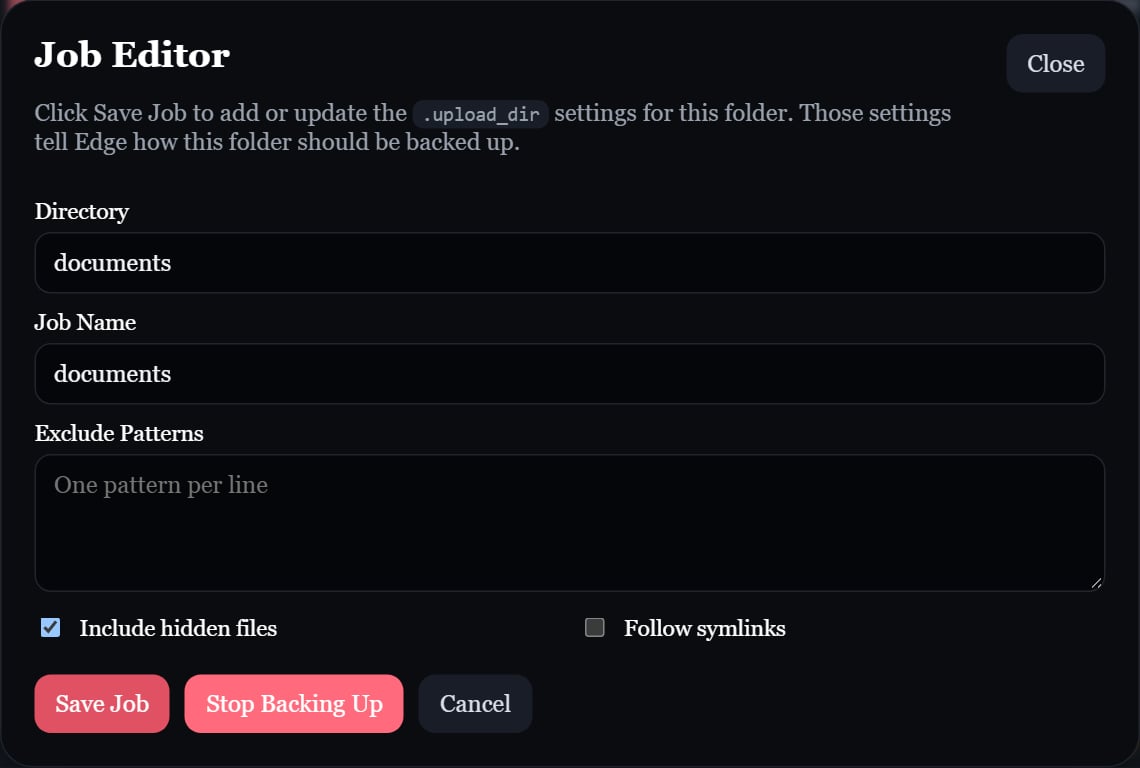
Click **Edit** on the folder's row to open the **Job Editor**. **Browse files** on the row lets you look inside first.
Fill in the fields below and click **Save Job**. Edge writes the folder's `.upload_dir` for you.
| Field | Default | Description |
| - | - | - |
| Job Name | Folder name | Name used on Central. Letters, digits, `.`, `_`, and `-` only. |
| Exclude Patterns | none | One pattern per line. See [Exclusions](#exclusions). |
| Include hidden files | on | Back up files and folders whose names start with `.`. |
| Follow symlinks | off | Back up the targets of symbolic links instead of skipping them. |
**Stop Backing Up** removes the marker. Existing snapshots on Central are kept.
 ## Create a job with a file
Create `.upload_dir` in the folder. An empty file uses the folder name as the job name:
```sh theme={null}
touch /home/alice/photos/.upload_dir
```
Or write YAML to set options:
```yaml .upload_dir theme={null}
job_name: photos
include_hidden: true
follow_symlinks: false
exclude:
- "*.tmp"
- cache/
- /exports/old/
```
If the YAML is invalid or `job_name` has disallowed characters, Edge skips the job and shows the error on it.
Job names must be **unique** across the whole Edge. Two folders both named `photos` need different `job_name` values, such as `main-photos` and `projects-photos`.
Once Edge finds a marker, it doesn't look for more markers inside that folder: a nested folder is already covered by its parent job.
Archives contain regular files. Empty directories and special files are not archived, and the job root's `.upload_dir` is excluded. A job with no included files is skipped. With **Follow symlinks** enabled, Edge stores the target's files rather than preserving the links themselves.
## Exclusions
Patterns are matched against paths relative to the job folder, using `/` as the separator.
| Pattern | Excludes |
| - | - |
| `*.tmp` | Any file or folder whose name matches, at any depth |
| `cache/` | Every folder named `cache`, at any depth, and everything inside it |
| `logs/*.log` | Paths matching the glob from the job root, such as `logs/app.log` |
| `/exports/old/` | Exactly `exports/old` under the job folder, and everything inside it |
| `/photos/image[1].jpg` | Exactly that file. Patterns starting with `/` are literal, so `[1]` is not treated as a glob. |
### Exclude from the file browser
On a job, click **Files & exclusions** to browse its files with their sizes.
* **Exclude** on a file, or **Exclude folder** on a folder, adds a literal `/…` pattern to the job's `.upload_dir` immediately.
* **Calculate folder size** totals a folder on demand. Totals are source sizes before compression, include excluded files, and skip symlinks and Edge's own runtime data.
* To include something again, remove its pattern in the Job Editor.
Exclusions apply to the **next** archive. If the job already has a staged archive, click **Clear staged backup** so it's rebuilt with the new exclusions.
## Job actions
| Button | What it does |
| - | - |
| **Files & exclusions** | Browse the job's files and manage exclusions. |
| **Force Upload** | Upload this job even if its fingerprint is unchanged. Reuses a staged archive if one exists; clear it first to build a fresh backup. Central may report an identical encrypted archive as a duplicate. |
| **Restore** | Restore a snapshot from Central into this folder. See [Restore](/edge/restore). |
| **Edit** | Open the Job Editor. |
| **Clear staged backup** | Shown when an archive is waiting to upload. Deletes it and resets retry state. Your files, backup history, and Central snapshots are kept. |
**Cancel operation** at the top of the page stops the backup cycle or forced upload in progress, including compression and upload retries. Incomplete archives are discarded; a fully built archive stays staged for retry. Cancel before clearing a staged backup.
## When a job is backed up
On each scheduled cycle, Edge compares the job's file paths and sizes with its last backup. It only builds and uploads a new snapshot when they differ.
If a failed upload has a staged archive ready for retry, Edge retries that archive first. New edits and exclusions are picked up when a fresh archive is built.
To run a cycle for all jobs without waiting for the schedule, click **Run Backup Cycle Now**. It follows the same rule, so unchanged jobs are skipped.
An edit that keeps a file's size the same isn't detected automatically. Use **Force Upload** to capture it. See [Design decisions](/concepts/design-decisions#path-and-size-fingerprinting).
## Create a job with a file
Create `.upload_dir` in the folder. An empty file uses the folder name as the job name:
```sh theme={null}
touch /home/alice/photos/.upload_dir
```
Or write YAML to set options:
```yaml .upload_dir theme={null}
job_name: photos
include_hidden: true
follow_symlinks: false
exclude:
- "*.tmp"
- cache/
- /exports/old/
```
If the YAML is invalid or `job_name` has disallowed characters, Edge skips the job and shows the error on it.
Job names must be **unique** across the whole Edge. Two folders both named `photos` need different `job_name` values, such as `main-photos` and `projects-photos`.
Once Edge finds a marker, it doesn't look for more markers inside that folder: a nested folder is already covered by its parent job.
Archives contain regular files. Empty directories and special files are not archived, and the job root's `.upload_dir` is excluded. A job with no included files is skipped. With **Follow symlinks** enabled, Edge stores the target's files rather than preserving the links themselves.
## Exclusions
Patterns are matched against paths relative to the job folder, using `/` as the separator.
| Pattern | Excludes |
| - | - |
| `*.tmp` | Any file or folder whose name matches, at any depth |
| `cache/` | Every folder named `cache`, at any depth, and everything inside it |
| `logs/*.log` | Paths matching the glob from the job root, such as `logs/app.log` |
| `/exports/old/` | Exactly `exports/old` under the job folder, and everything inside it |
| `/photos/image[1].jpg` | Exactly that file. Patterns starting with `/` are literal, so `[1]` is not treated as a glob. |
### Exclude from the file browser
On a job, click **Files & exclusions** to browse its files with their sizes.
* **Exclude** on a file, or **Exclude folder** on a folder, adds a literal `/…` pattern to the job's `.upload_dir` immediately.
* **Calculate folder size** totals a folder on demand. Totals are source sizes before compression, include excluded files, and skip symlinks and Edge's own runtime data.
* To include something again, remove its pattern in the Job Editor.
Exclusions apply to the **next** archive. If the job already has a staged archive, click **Clear staged backup** so it's rebuilt with the new exclusions.
## Job actions
| Button | What it does |
| - | - |
| **Files & exclusions** | Browse the job's files and manage exclusions. |
| **Force Upload** | Upload this job even if its fingerprint is unchanged. Reuses a staged archive if one exists; clear it first to build a fresh backup. Central may report an identical encrypted archive as a duplicate. |
| **Restore** | Restore a snapshot from Central into this folder. See [Restore](/edge/restore). |
| **Edit** | Open the Job Editor. |
| **Clear staged backup** | Shown when an archive is waiting to upload. Deletes it and resets retry state. Your files, backup history, and Central snapshots are kept. |
**Cancel operation** at the top of the page stops the backup cycle or forced upload in progress, including compression and upload retries. Incomplete archives are discarded; a fully built archive stays staged for retry. Cancel before clearing a staged backup.
## When a job is backed up
On each scheduled cycle, Edge compares the job's file paths and sizes with its last backup. It only builds and uploads a new snapshot when they differ.
If a failed upload has a staged archive ready for retry, Edge retries that archive first. New edits and exclusions are picked up when a fresh archive is built.
To run a cycle for all jobs without waiting for the schedule, click **Run Backup Cycle Now**. It follows the same rule, so unchanged jobs are skipped.
An edit that keeps a file's size the same isn't detected automatically. Use **Force Upload** to capture it. See [Design decisions](/concepts/design-decisions#path-and-size-fingerprinting).